Somewhere on your schedule right now there is a job that moved three times this week. Every move meant opening the work order, re-entering the dates, and hoping the crew got the message.
Scheduling is the thing our customers have pushed us on the hardest. So for crewOS 1.8.0 we did not patch the calendar. We rebuilt scheduling from the ground up, around the way you actually run crews.
Quoting got its biggest update since launch, starting with quote groups you can tie to the crane they cover. The whole crew gets the app, Job Documents land on their phones, and a work order cannot close until its inspections and service reports are done.
Here is what changed, then the full list.
1. Scheduling, rebuilt from the ground up
This is the biggest build in the release, and it is the one we built for you.
The whole week on one screen
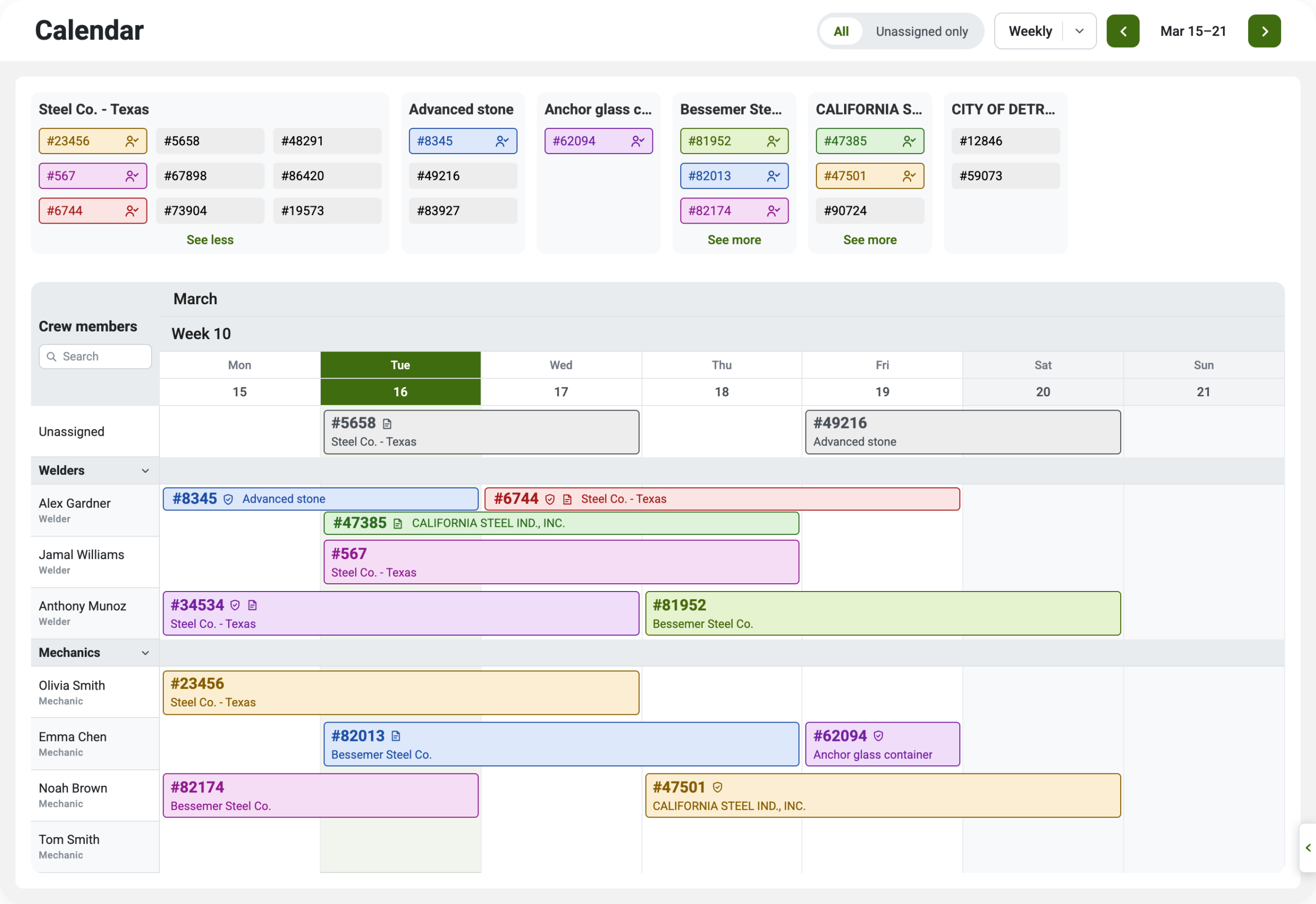
The new web scheduling calendar puts every crew member in a row and every job in a bar across the days it runs. Multi-day work shows as one bar across the days it spans, the way a shutdown actually runs.
What still needs a crew, at the top
Jobs waiting to be scheduled sit in a backlog above the calendar, grouped by customer. Switch to Unassigned only and the view shows you exactly what still needs a crew. Monday morning starts with that question answered.
When a job moves, drag it
Drag a job to a new day or to a different crew member’s row. You do not have to open the work order or re-enter the dates. Every job shows its primary service location on the calendar, and hovering over one pulls up the job detail and description without leaving the week.
Open the work order without leaving the week
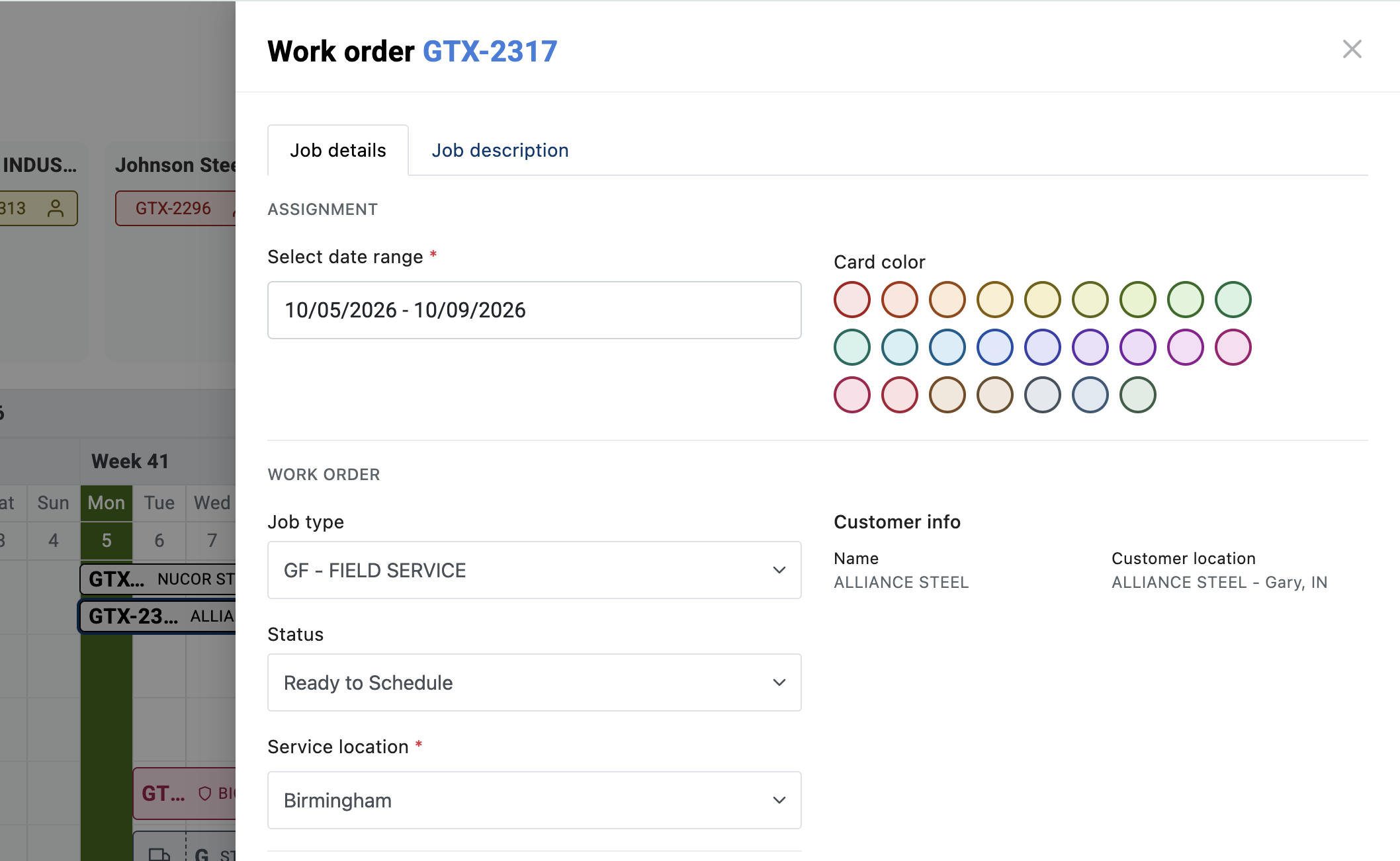
Click any job on the calendar and the work order slides open beside the week. You don’t leave the schedule to work on it. Set the date range, change the job type, move the status from Ready to Schedule, and confirm the service location, with the customer and their location shown alongside. Pick a card color so the calendar reads the way your whiteboard used to. The job description is one tab over.
2. Quotes built for Industrial Workflows
Quote Groups linked directly to your customer’s Assets
This is the biggest change to quoting since we launched it, and it was built for the workflows that you told us you needed.
An equipment service quote is rarely about one piece of equipment. One customer visit can mean a hoist replacement on one crane, a runway repair in another bay, and a brake job on a third. Until now, a quote listed that work as line items, and the customer had to work out which crane each line was for.
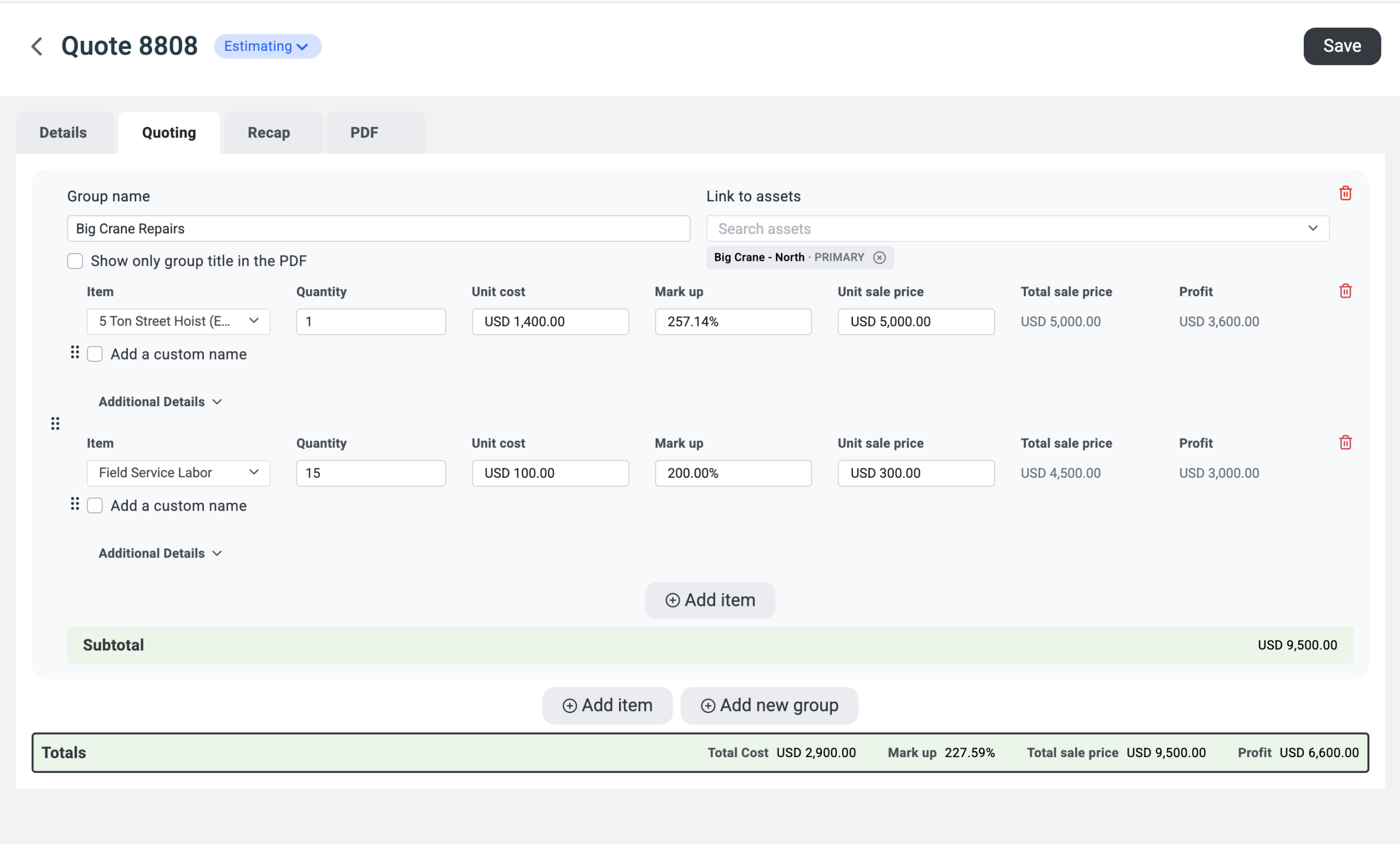
Now every group on a quote can be linked to the assets it covers. Name the group, search your customer’s equipment, and attach the crane, the hoist, or the runway. Mark one as primary. The quote now says which crane each piece of work is for.
On the PDF, every group header names its assets, so your customer reads Crane 4 next to the Crane 4 work. Nobody has to call to ask which crane line six is for.
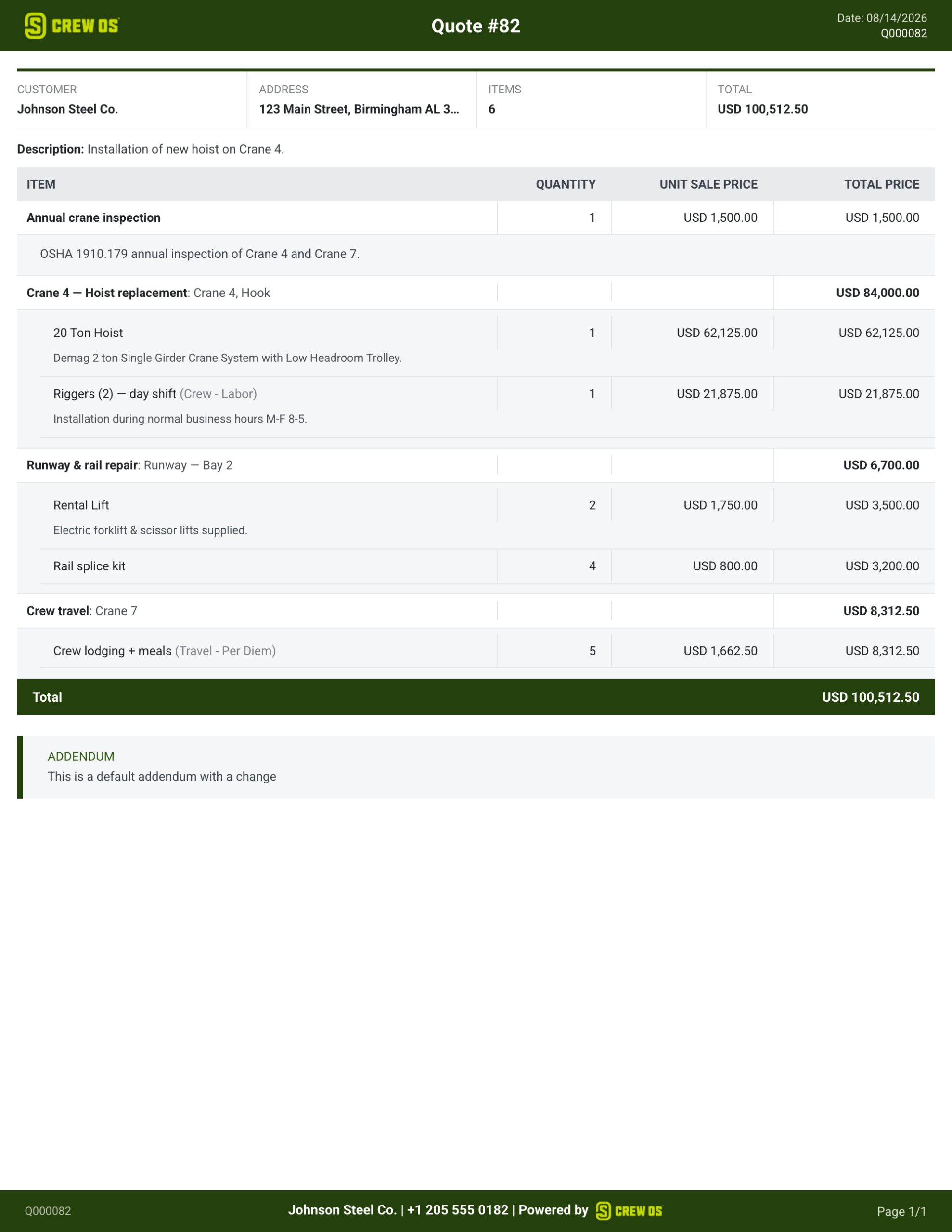
Item groups
Quote items can now be organized into named groups. A hoist replacement on Crane 4 holds the hoist and the riggers. A runway repair holds the lift rental and the splice kits. Each group carries its own subtotal, and you choose per group whether the customer sees every line or just the group title and price.
The quote PDF follows the same structure. Each group is a section with its assets named, descriptions under the lines, and subtotals where your customer expects them. A $100,000 hoist replacement reads as three clear decisions instead of one long list.
A Details tab of its own
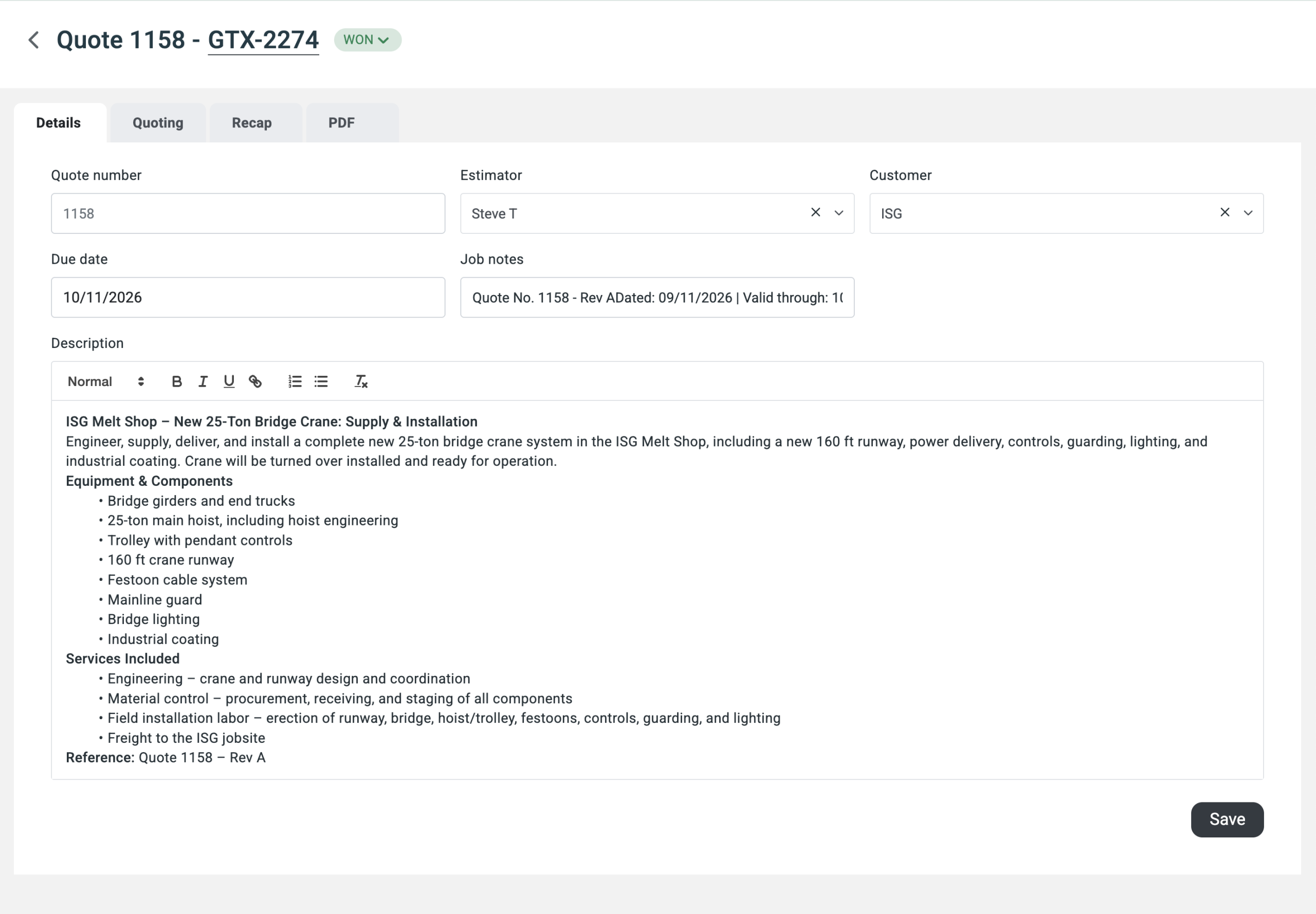
Quote details moved to their own tab: quote number, estimator, customer, due date, job notes and description. The Quoting tab is now just for pricing, and the details are one click away.
The description is a formatted editor, so a big job reads like a real scope of work. Use headings, bold and bullet lists for the equipment and components, the services included, and the revision you’re quoting. It’s what your customer needs to say yes to a new bridge crane install, written once, on the quote.
3. The whole crew is in the app
Until now the crewOS app belonged to the crew lead. Everyone else got their schedule secondhand.
Crew members who are not the lead, and technicians, can now use the crewOS app and work orders with limited permissions. On their assigned days they see the job and do their part: photos, notes, expenses, equipment and safety forms. The lead keeps control of the work order.
Permissions follow the assignment. On a day outside a crew member’s assignment, the work order is read-only, and the app tells them so instead of failing quietly. They can still review everything on the job.
4. Job Documents are in the app
Last release we said Job Documents were coming to the app. They are here.
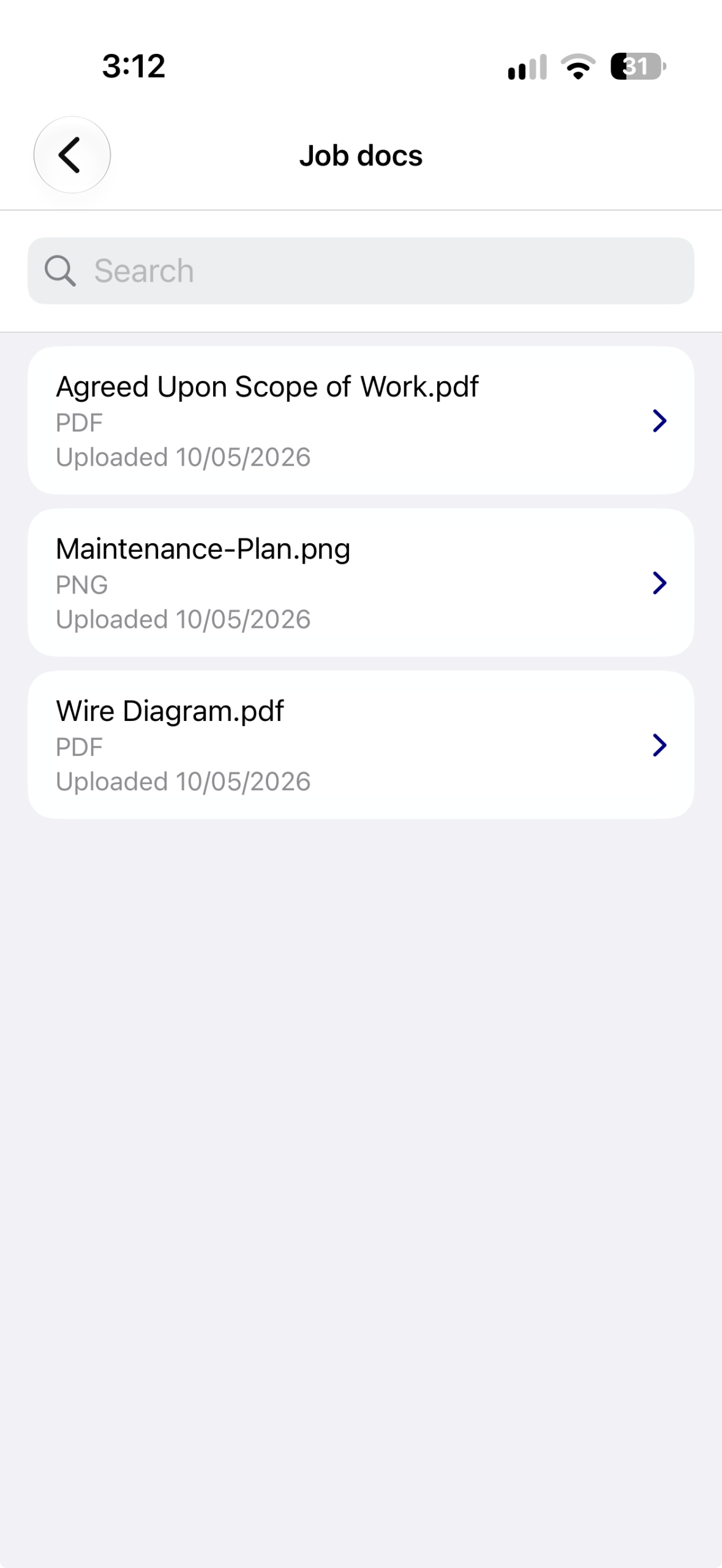
The agreed scope of work, the maintenance plan, the wiring diagram: whatever the office attached to the work order is now on the crew’s phone. Open the work order, tap Job docs, and every file is there with its type and upload date, plus search when the list gets long. They can view it, share it, and save it while they’re at the equipment.
When the question on site is “what did we agree to?” or “which wire is which?”, the crew opens the file instead of calling the office.
5. A work order cannot close with inspections or service reports open
You can now require inspections, services and safety forms to be finished before a work order closes.
With the check on, a crew that tries to close a job with something unfinished gets stopped and told exactly what is still open. Each form is listed by name and day, grouped under Safety, Inspections and Service.
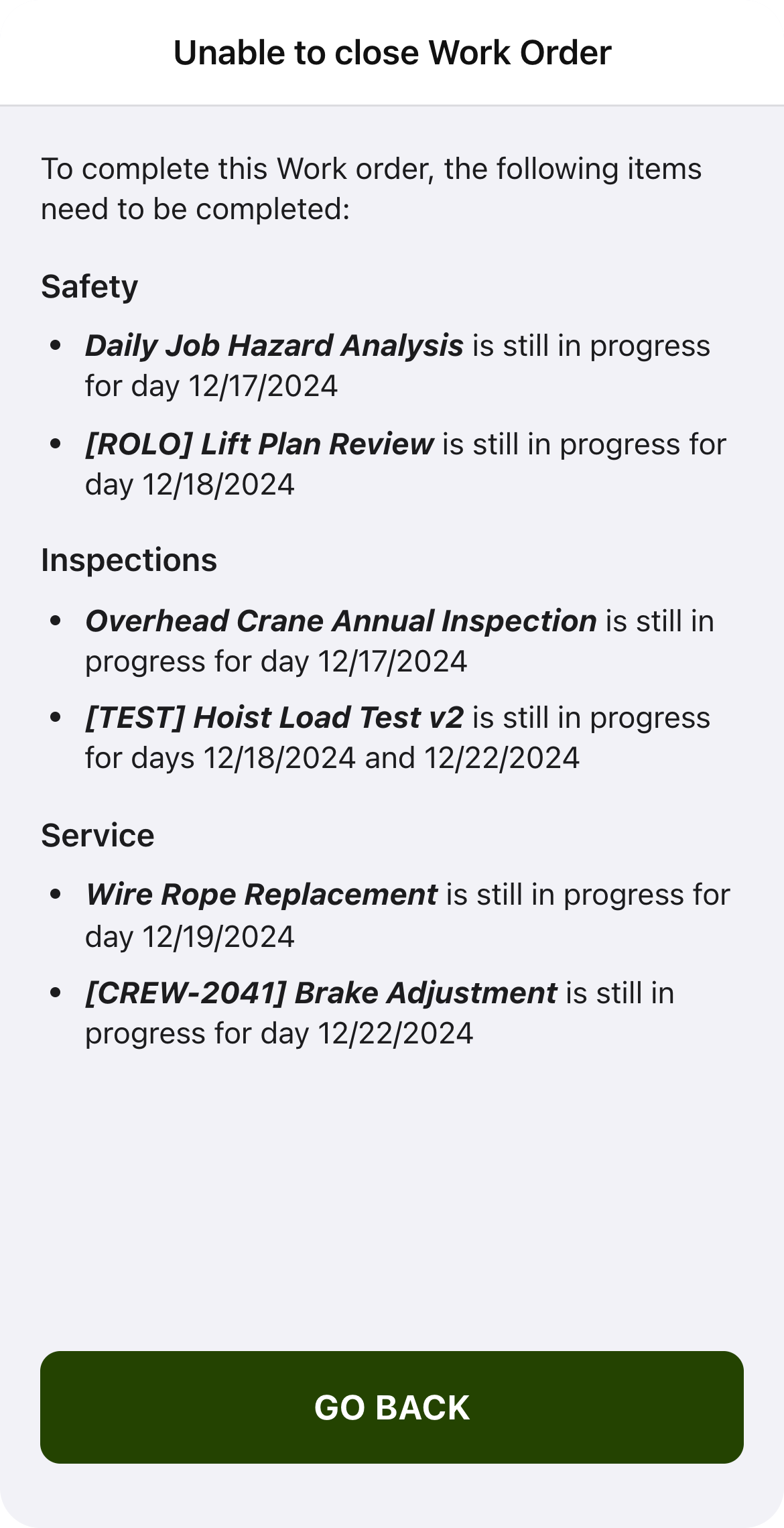
That moves the cleanup to the cheapest moment: while the crew is still on the job. Fewer work orders land in the office incomplete, there are fewer calls to the field chasing a missing form, and the invoice doesn’t wait for the inspections and service reports to catch up.
Your customer success manager can turn close-out checks on for your environment and set which forms are required.
6. Smaller fixes that save time every week
None of these are headline features, but each one removes a step somebody runs into regularly.
Know when an integration breaks. crewOS emails you when an integration fails and again when it recovers, so a sync problem doesn’t go unnoticed for a week.
Push customers to QuickBooks. Send a customer from crewOS to QuickBooks instead of creating them twice.
Adjust Per Diem and Payroll by hand. Make one-off corrections right on the entry, so they happen inside crewOS instead of in a side spreadsheet.
Dynamic attributes in the app. The attributes you track on equipment now show in the app’s work order detail. A Show in app setting controls which ones your crew sees, and equipment lists on the web are searchable by them.
Add All, photo editing, and a few more. An Add All button for inspection and service assets. Photo editing and reordering. A redesigned user and employee setup. A new Smart Report that flags work days with no work time logged. Links straight to schedules, payroll and sync logs. A page size that remembers your choice.
The full list, by capability area
Everything in the release, grouped by what it moves.
Scheduling
- Web scheduling calendar rebuilt from the ground up, with drag-and-drop rescheduling across days and crew members
- Primary service location shown on every job
- Hover a job for its detail and description
- Backlog of unscheduled jobs by customer, with an Unassigned only filter
Quoting
- Link assets to quote groups, with a primary asset per group
- Item groups on quotes, with per-group subtotals
- Item groups on the quote PDF
- Quote Details tab
Crew access in the app
- Non-lead crew members and technicians in the app and work orders with limited permissions
- Job Documents in the app, with view, share and offline save
Work order close-out
- Require inspections, services and safety forms to be finished before a work order closes
Time, payroll and per diem
- Manual adjustments on Per Diem and Payroll entries
- Smart Report flagging work days with no work time logged
Equipment and dynamic attributes
- Dynamic attributes in the app’s work order detail
- Show in app setting per attribute
- Search equipment lists by dynamic attributes
Inspections and service
- Add All button for inspection and service assets
- Photo editing and reordering
Admin and navigation
- Redesigned user and employee setup
- Deep links to schedules, payroll and sync logs
- Page size that remembers your choice
What this adds up to
Last release made sure nothing your crew finds gets lost on the way to being fixed and billed. This release is about the job itself.
You schedule it by dragging it onto the calendar. The whole crew runs it with the job documents on their phones. It can’t close until every inspection and service report is finished. The job your dispatcher drags onto Tuesday comes back Friday finished, documented and ready to invoice, and nobody in the office has to chase it.
You told us scheduling was where it hurt most, so we rebuilt it first. There’s more coming.
crewOS 1.8.0
Already a crewOS customer? Your customer success manager will walk you through 1.8.0 and let you know when your environment is scheduled. Start with the new calendar.
New here?