Most field service companies are still delivering their work product the same way they were ten years ago: email attachments, phone calls, and a shared drive nobody can find. The crewOS Customer Portal changes that, and lets your customers see their assets, their documents, and their full service history in one place, without calling your office. Setup takes minutes. Here’s how to get your first customer live.
Step 1: Enable the Portal
Navigate to Settings, then Customer Portal in your crewOS dashboard. Toggle the portal on for your account. The portal is now active for your organization.
Step 2: Configure Your Branding
Upload your company logo and set your brand colors. The portal carries your company’s identity, so your customers see your business, not a generic software login.
This matters more than it sounds. When a customer logs in and sees your logo, your colors, and your company name, the experience reinforces that you’re a professional operation. That impression compounds over time.
Step 3: Invite Your First Customer
Select a customer from your customer list and click “Enable Portal Access.” Enter the email address for your customer contact. They’ll receive an invitation email with login instructions.
Pro tip: Start with your best customer. The one who calls your office most often for documents. They’ll appreciate it immediately, and their reaction will tell you everything you need to know about how the rest of your customers will respond.
Step 4: Understand What Your Customer Sees
Once logged in, your customer sees:
- Asset Overview: Every asset you’ve recorded for them in crewOS, organized and searchable. Status indicators show what’s current and what’s due for service.
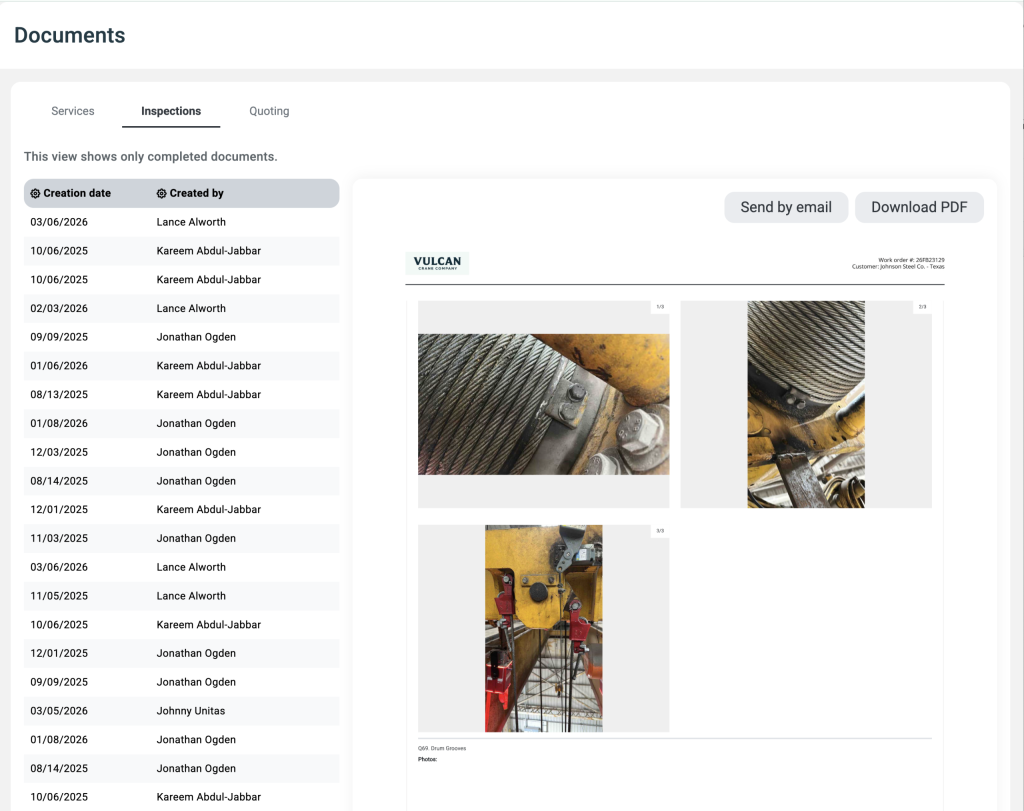
- Documents: Every PDF associated with their assets and work orders. Inspection reports, certificates, safety summaries, all accessible the moment you finalize them in crewOS.
- Service History: A chronological timeline of the work you’ve performed, organized by asset. Complete with dates, descriptions, and associated documents.
What that means in practice: a plant manager who used to call your office every time they needed a compliance document for an audit can now log in, find it, and download it in under a minute. No wait. No back-and-forth. No “I’ll have someone email that over.”
That’s a service experience that your competitors aren’t offering, and your customer will notice.
Step 5: Let It Work
You don’t have to do anything different. Keep using crewOS the way you already do. When your techs submit reports, when documents get generated, when work orders close, all of that automatically appears in your customer’s portal.
No extra steps, no manual uploads, no emailing PDFs.
Over time, that adds up. Every inspection you complete, every repair you document, every certificate you generate, it’s all accumulating in a visible record your customer can access whenever they need it. Six months in, a customer who logs into the portal sees the full picture of what you’ve done for them. That’s not something a competitor can replicate with a price quote.
Common Questions
Can I control which documents my customer sees?
Yes. You have full control over document visibility. Only documents you’ve marked for customer access will appear in the portal.
Can I give multiple people at the same customer access?
Yes. You can invite as many contacts as needed per customer.
Is the portal secure?
Yes. Each customer contact has their own login credentials, and they can only see data associated with their company. Your data stays yours.
What Happens After You Set It Up
The companies that have already set up the portal are reporting two things consistently. First, the inbound calls for document requests dropped significantly within the first month. Second, customers started responding differently in renewal conversations, because they could see the work, not just take your word for it.
When customers can see the full record of what you’ve done for them, renewal conversations change. If you’re not already turning your inspection documentation into those conversations, The Inspection Report That Closes Deals is worth a read.
What’s Next
The Customer Portal is the foundation. We’re actively building more capabilities, including service requests, quote approvals, and real-time job status updates. Your feedback drives what we build next.
Explore the Customer Portal feature to see everything it includes.
It's Time To Get Started
It’s time to give your customers the access they’ve been looking for.